How to Use Mapped Content Controls in Word 2016
2026-06-19

TL;DR
You open a Word document and see the same client name typed in eleven different places. Someone already changed it in three spots and missed the other eight. That inconsistency costs real time to audit and fix before every send.
Inserting content controls without mapping them to a data source does not solve this. It only creates a more structured version of the same manual problem. Each control holds its own value independently, so edits still require touching every field one by one.
Mapped content controls work differently. You attach a Custom XML Part to the document, link each control to a specific leaf node in that XML, and every field reading from the same node updates when the source data changes. This guide is written for document builders, operations managers, and template designers who want to stop editing the same value in multiple places.
* * *
What Are Mapped Content Controls in Word 2016?
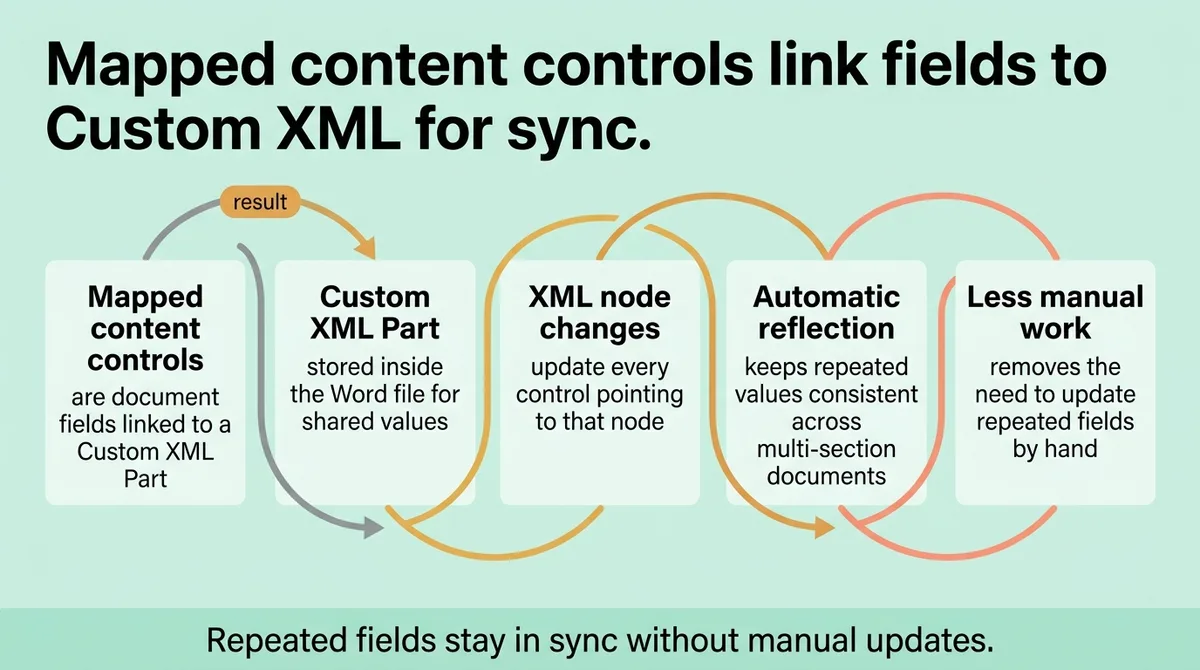
Mapped content controls are document fields linked directly to a Custom XML Part stored inside the Word file. When the XML node value changes, every control pointing to that node reflects the new value immediately. This removes the need to update repeated fields by hand across multi-section documents.
* * *
Why You Need the Developer Tab Before Anything Else
The Developer tab is not visible by default in Word 2016 [\[3\]](#ref-3). Most users open Word, look for content control tools, find nothing obvious, and either stop or start downloading add-ins they do not need.
The tab lives in the ribbon customization settings. Open Word, go to File, select Options, then click Customize Ribbon. In the right-side column showing main tabs, check the box next to Developer and click OK. The tab appears immediately.
Every content control feature, including the XML mapping panel, lives inside this tab. Without it, you cannot insert controls, view XML structure, or configure mapping. Spending ten minutes searching other menus wastes time you could spend building the actual template.
One clarifying point: the Developer tab grants access to both legacy form fields and modern content controls. These are different tools. Legacy fields from older Word versions do not support XML mapping. You want the modern content controls listed under the Controls group in the Developer tab.
Stop looking for content control features in the Insert tab. Start with Developer, because that is the only place these tools exist.
* * *
Most People Insert Controls Without Mapping Them , Here Is Why That Breaks Your Document
Here is the false assumption worth naming early: content controls are not the same as mapped content controls.
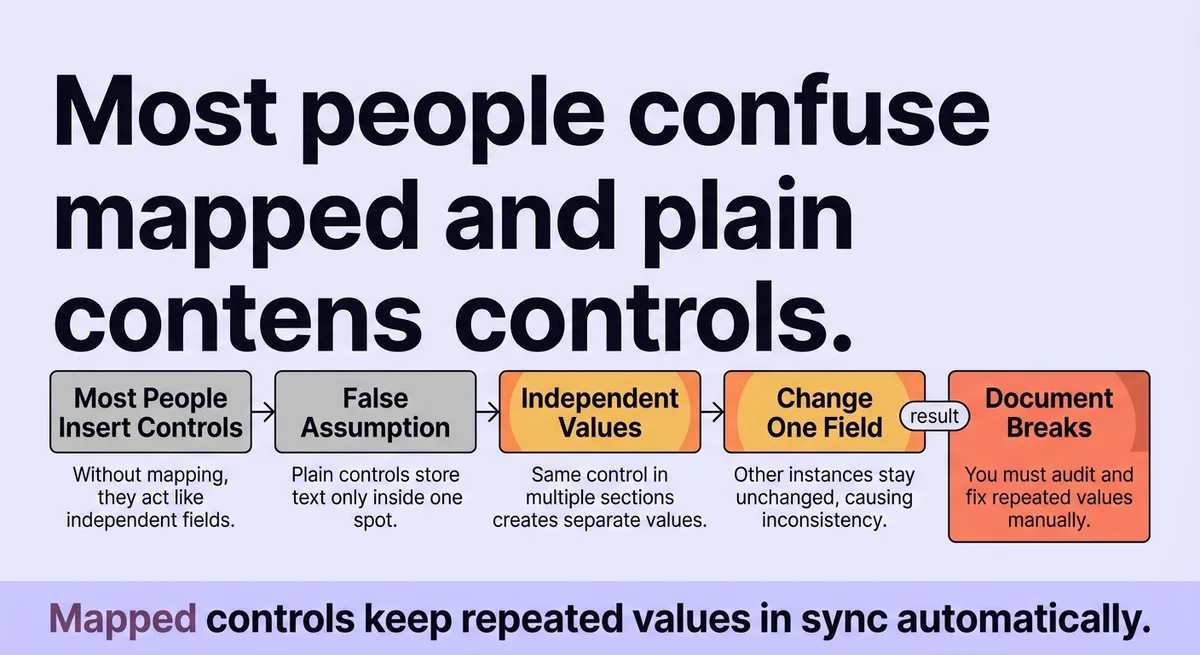
A plain content control holds text independently. If you insert a plain text control labeled "Client Name" and type a value, that value lives only inside that one control. Place the same control in five sections of a document and you now own five separate fields with five separate values. Change one, and the others stay unchanged.
Word 2016 supports nine content control types in total: rich text, plain text, picture, building block gallery, combo box, drop-down list, date, checkbox, and group [\[1\]](#ref-1). Every one of these can be inserted without mapping. Most documentation covers the insertion step clearly. It covers the mapping step briefly or not at all. That gap is where documents break.
The cost is concrete. A contract template with a client name in the header, the signature block, the liability clause, and the cover page requires four manual edits every time a new client is onboarded. Multiply that by 40 documents per month, and the team spends roughly 160 small edit cycles on a problem that mapping eliminates entirely.
Unmapped controls also create version drift. A collaborator updates one field, saves the file, and sends it. The recipient sees a document with two different client names in the same file. That error reaches the client.
Mapping connects controls to a single data node. One update at the XML level ripples across every control linked to that node. The document cannot drift because all fields read from the same source.
The XML mapping limitation is strict: it works only on leaf nodes or attributes inside your XML structure [\[1\]](#ref-1). A leaf node is any element in the XML that contains no child elements. It holds a value directly. If you try to map a control to a parent node that contains child elements, the mapping fails silently. The control reverts to independent behavior. This is the most common technical failure in mapped document builds.
<table class="border-collapse w-full my-4 table-auto mx-4 max-w-4xl sm:mx-auto" style="min-width: 75px;"><colgroup><col style="min-width: 25px;"><col style="min-width: 25px;"><col style="min-width: 25px;"></colgroup><tbody><tr><th class="border border-border px-4 py-3 bg-muted font-semibold text-left" colspan="1" rowspan="1"><p>Control Type</p></th><th class="border border-border px-4 py-3 bg-muted font-semibold text-left" colspan="1" rowspan="1"><p>Supports XML Mapping</p></th><th class="border border-border px-4 py-3 bg-muted font-semibold text-left" colspan="1" rowspan="1"><p>Notes</p></th></tr><tr><td class="border border-border px-4 py-3" colspan="1" rowspan="1"><p>Plain Text</p></td><td class="border border-border px-4 py-3" colspan="1" rowspan="1"><p>Yes</p></td><td class="border border-border px-4 py-3" colspan="1" rowspan="1"><p>Maps to leaf nodes or attributes</p></td></tr><tr><td class="border border-border px-4 py-3" colspan="1" rowspan="1"><p>Rich Text</p></td><td class="border border-border px-4 py-3" colspan="1" rowspan="1"><p>Yes (Word 2013+)</p></td><td class="border border-border px-4 py-3" colspan="1" rowspan="1"><p>XML mapping support added in 2013 update <a rel="noopener noreferrer nofollow" class="text-primary underline citation-link" href="#ref-1">[1]</a></p></td></tr><tr><td class="border border-border px-4 py-3" colspan="1" rowspan="1"><p>Date</p></td><td class="border border-border px-4 py-3" colspan="1" rowspan="1"><p>Yes</p></td><td class="border border-border px-4 py-3" colspan="1" rowspan="1"><p>Stores ISO date string in XML</p></td></tr><tr><td class="border border-border px-4 py-3" colspan="1" rowspan="1"><p>Drop-Down List</p></td><td class="border border-border px-4 py-3" colspan="1" rowspan="1"><p>Yes</p></td><td class="border border-border px-4 py-3" colspan="1" rowspan="1"><p>Maps selected value as text</p></td></tr><tr><td class="border border-border px-4 py-3" colspan="1" rowspan="1"><p>Picture</p></td><td class="border border-border px-4 py-3" colspan="1" rowspan="1"><p>No</p></td><td class="border border-border px-4 py-3" colspan="1" rowspan="1"><p>Binary data cannot map to XML nodes</p></td></tr><tr><td class="border border-border px-4 py-3" colspan="1" rowspan="1"><p>Building Block Gallery</p></td><td class="border border-border px-4 py-3" colspan="1" rowspan="1"><p>No</p></td><td class="border border-border px-4 py-3" colspan="1" rowspan="1"><p>Not compatible with Custom XML Parts</p></td></tr></tbody></table>
Use this table as a filter before you build your XML structure. Designing XML nodes around control types that do not support mapping wastes setup time.
* * *
How to Link Your XML Data to a Control and Keep Every Field in Sync
The linking process has three sequential parts. Skip any one of them and the mapping does not hold.
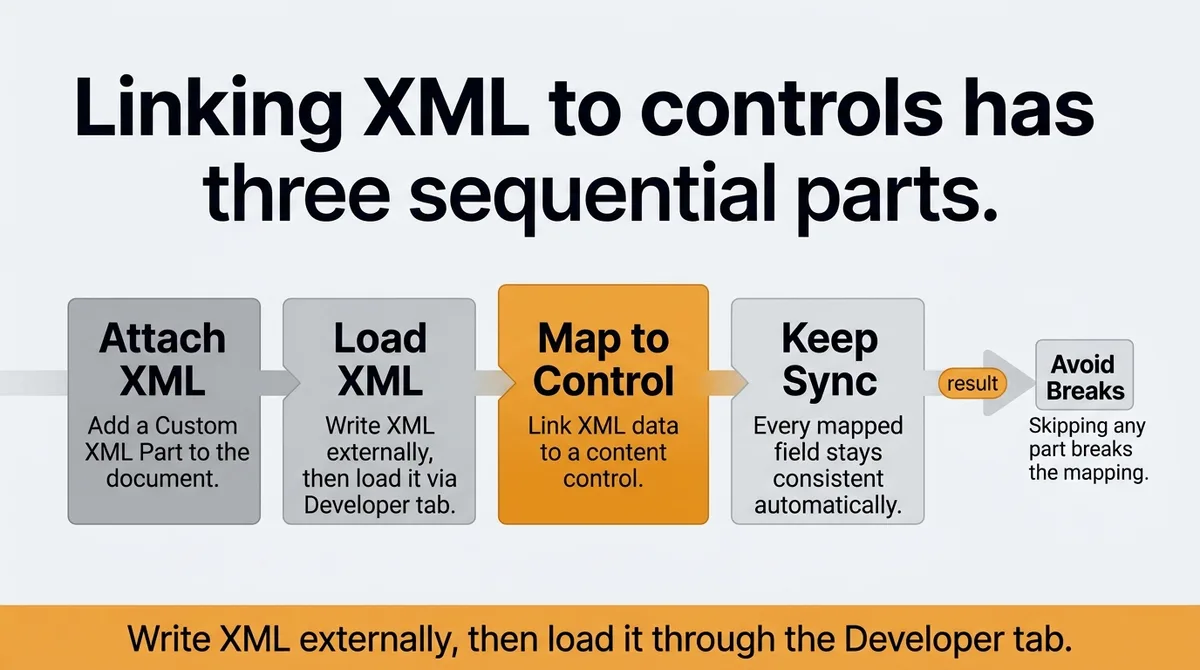
Step 1: Attach a Custom XML Part to the document.
A Custom XML Part is a structured XML file embedded inside the Word document itself. Word stores it in the document's package alongside content and styles. You write the XML externally, then load it through the Developer tab.
A minimal XML structure for a client document might look like this, with three fields representing common repeated values [\[2\]](#ref-2):
```xml <?xml version="1.0" encoding="UTF-8"?> <document> <clientName>Acme Corporation</clientName> <projectTitle>Q3 Infrastructure Review</projectTitle> <contractDate>2025-09-01</contractDate> </document> ```
To attach this file, open the Developer tab and click XML Mapping Pane. At the top of the pane, click the dropdown and select Add a new part. Browse to your XML file and load it. The structure appears in the pane as a collapsible tree.
Step 2: Insert a content control and map it to a leaf node.
Click into the document where the client name should appear. In the Developer tab, click Plain Text Content Control in the Controls group. The control appears inline. With the control selected, look at the XML Mapping Pane. Expand your XML tree, right-click the `clientName` node, and select Map to Selected Content Control.
The control now displays the value from the XML node. Word draws the connection between the visual field and the stored data.
Step 3: Verify the live link.
Go back to the XML Mapping Pane. Click the node you mapped. The corresponding control in the document highlights. This confirms an active connection.
Repeat this process for every repeated field. Each control points to a leaf node. If two controls point to the same node, both update when the node value changes. That single-source behavior is the core of what makes this approach reliable [\[1\]](#ref-1).
One implementation caveat: Word reads the XML value at document load and when the Custom XML Part changes programmatically. If you want dynamic updates from an external system, you need a macro or an add-in to write new values into the Custom XML Part. The mapping itself does not pull from external sources automatically. It reads only what is stored inside the document package.
* * *
Configuring Control Properties to Guide Input and Prevent Accidental Edits
Mapping creates the connection. Properties protect it.
Word 2016 offers three visualization states for any content control: bounding box, start/end tags, and none [\[1\]](#ref-1). Each state changes how collaborators interact with the field. The bounding box renders a visible rectangle around the control with a title label. Start/end tags show XML-style markers on either side. The hidden state removes all visual indicators, leaving only the field text.
For document templates shared across a team, bounding box mode works best. It signals clearly that a field exists and that the value comes from a structured source. Collaborators know not to type freely over it.
The schema section of Word's content control model adds two elements that reinforce this: appearance and color [\[1\]](#ref-1). The appearance setting supports three values: `boundingBox`, `tags`, and `hidden` [\[1\]](#ref-1). The color element lets you assign a visible highlight color to the control's bounding box. Setting all mapped controls to the same color, for example a light blue border, creates an immediate visual pattern. Every collaborator sees a consistent signal: blue border means a mapped field; do not edit directly.
To set these properties, right-click any content control and select Properties. The Content Control Properties dialog opens. From here, set the title, the tag, and the color. You can also check two critical boxes:
- Content control cannot be deleted: prevents collaborators from removing the control entirely.
- Contents cannot be edited: locks the field so the value can only change through the XML source.
Locking the contents of a mapped control is the strongest protection available. A collaborator working in the document cannot accidentally overwrite a client name mid-paragraph. The field visually resists edits. Any value change must go through the XML data layer.
The object model behind this exposes two members for content controls: Appearance and Color [\[1\]](#ref-1). If you plan to build macros or automate document generation, set these properties programmatically using the `ContentControl.Appearance` and `ContentControl.Color` properties in VBA. This becomes useful when generating multiple documents from a data source where each document needs distinct colors per section or per client tier.
A quick workflow check: build a test document with three mapped controls, set all three to bounding box with a blue color, lock all three against editing, then ask a colleague to try editing a field directly. If they cannot overwrite the value, the protection layer works. If they can, revisit the lock settings in Properties.
Configuring properties takes about two minutes per control. For a 20-field template, that is forty minutes of setup time that prevents hundreds of future correction cycles.
* * *
Map Once and Let Your Document Fields Update Themselves
The mapped content control system works as a three-part chain: structured XML holds the data, controls display it, and properties protect it from accidental changes.
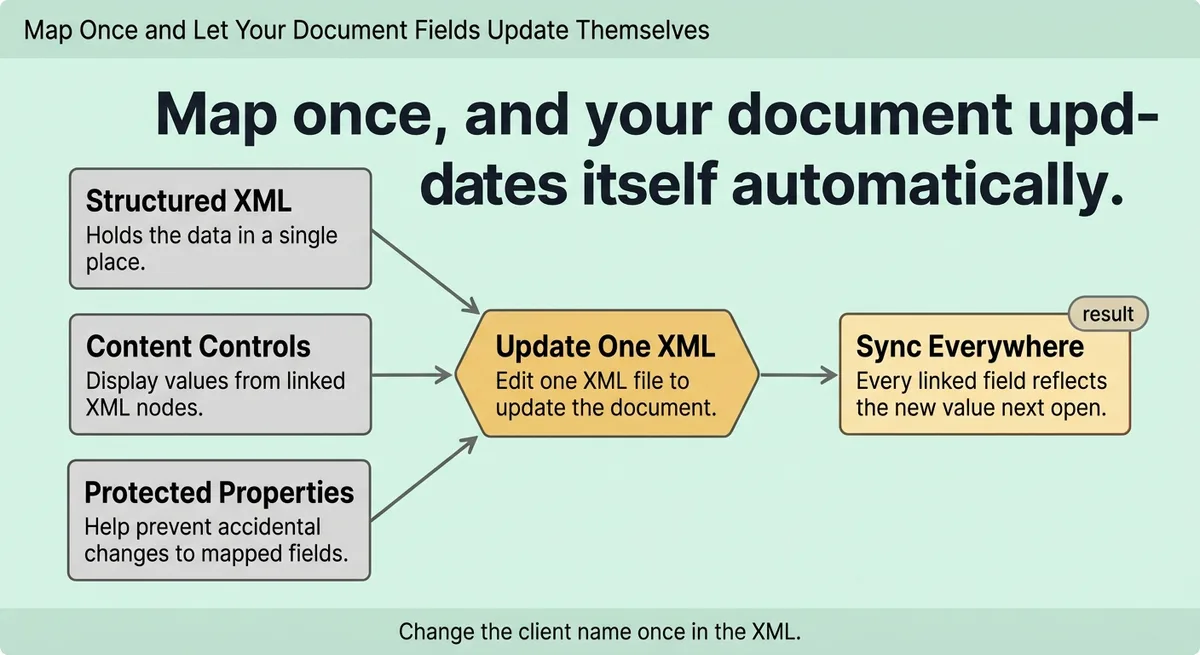
When you set this up correctly, updating a document means editing one XML file. Every field linked to any node in that file reflects the new value on the next open. A 30-field contract becomes a single-source document. Change the client name once in the XML and every instance in the document updates.
This applies to any document type where repeated values create maintenance risk: contracts, proposals, onboarding packets, compliance reports. Build the XML structure around your actual repeating fields, map each control to its corresponding leaf node, and lock the properties before distributing the template.
The setup investment is front-loaded. Once the template exists, the ongoing work disappears. Set the Developer tab, attach the XML part, map every field to a leaf node, and lock the controls down.
* * *
FAQ
How to map content control in Word?
Open the Developer tab and click XML Mapping Pane. Attach a Custom XML Part to the document using the pane's dropdown. Insert a content control where you want the field, then right-click the corresponding leaf node in the XML tree and select Map to Selected Content Control. The control now displays the node's value.
Is Word 2016 outdated?
Word 2016 remains functional for document creation and template building. Microsoft extended mainstream support through 2020 and extended support through October 2025. Many organizations still run it on internal systems. Its content control and XML mapping features work the same as later versions for the purposes covered in this guide.
How to use content controls in Word?
Open the Developer tab, which you activate through File, Options, Customize Ribbon. Place your cursor where you want a field, then click a control type from the Controls group. Right-click the inserted control and select Properties to set its title, tag, color, and editing restrictions. For data-linked fields, attach a Custom XML Part and map the control to a leaf node.
How to use ActiveX controls in Word?
ActiveX controls appear in the Developer tab under the Legacy Tools dropdown. Insert them the same way as modern controls by clicking the appropriate button. They require VBA macros to handle their values and do not support Custom XML Part mapping. For structured document templates, modern content controls are the more reliable option.
How do I create a TOC manually?
Place your cursor where you want the table of contents. Type your section headings as plain text with corresponding page numbers. Format the entries consistently using tab stops for alignment. For an auto-updating TOC, apply built-in heading styles to your document sections and insert a field-based TOC through References, Table of Contents instead.
Can I still use Office 2016 in 2025?
Office 2016 reached the end of extended support in October 2025. The software continues to function after that date, but Microsoft no longer releases security patches or bug fixes. Organizations running it in 2025 carry security exposure on unpatched vulnerabilities. For active business use, upgrading to a supported version reduces that risk.
Is Microsoft Office 2026 coming out?
Microsoft has not confirmed a standalone Office 2026 release as of this writing. The company's current direction favors Microsoft 365 subscription licensing over perpetual release cycles. Office 2024 is the most recent perpetual version available. Check the official Microsoft product roadmap for any confirmed future releases.
* * *
References and Citations
[\[1\]](#ref-1) [https://learn.microsoft.com/en-us/office/client-developer/word/content-controls-in-word](https://learn.microsoft.com/en-us/office/client-developer/word/content-controls-in-word)
[\[2\]](#ref-2) [https://macroware.wordpress.com/2021/09/18/custom-content-controls-in-word/](https://macroware.wordpress.com/2021/09/18/custom-content-controls-in-word/)
[\[3\]](#ref-3) [https://petri.com/office-365-adding-content-controls-to-word-documents/](https://petri.com/office-365-adding-content-controls-to-word-documents/)