How to Link Content Controls in Microsoft Word So Text Repeats Across a Document
2026-06-19
TL;DR
You open a 30-page contract template. The client name appears 14 times. You correct a typo in paragraph two, then spend the next 20 minutes hunting every other instance with Find and Replace. That friction is not a formatting problem. It is a structural one.
Copy-paste creates duplicates. Duplicates require manual updates. One missed instance ships incorrect text to a client. That failure mode is predictable and avoidable.
The Linked Control Setup System uses Word's built-in XML data store to hold one value and display it in as many locations as you choose. When the source field updates, every connected field updates with it. No macros. No scripting. This guide covers the exact configuration steps, the three conditions that silently break synchronization, and the maintenance routine that keeps linked controls working after a document is distributed.
* * *
How do you link content controls in Word so text repeats automatically?
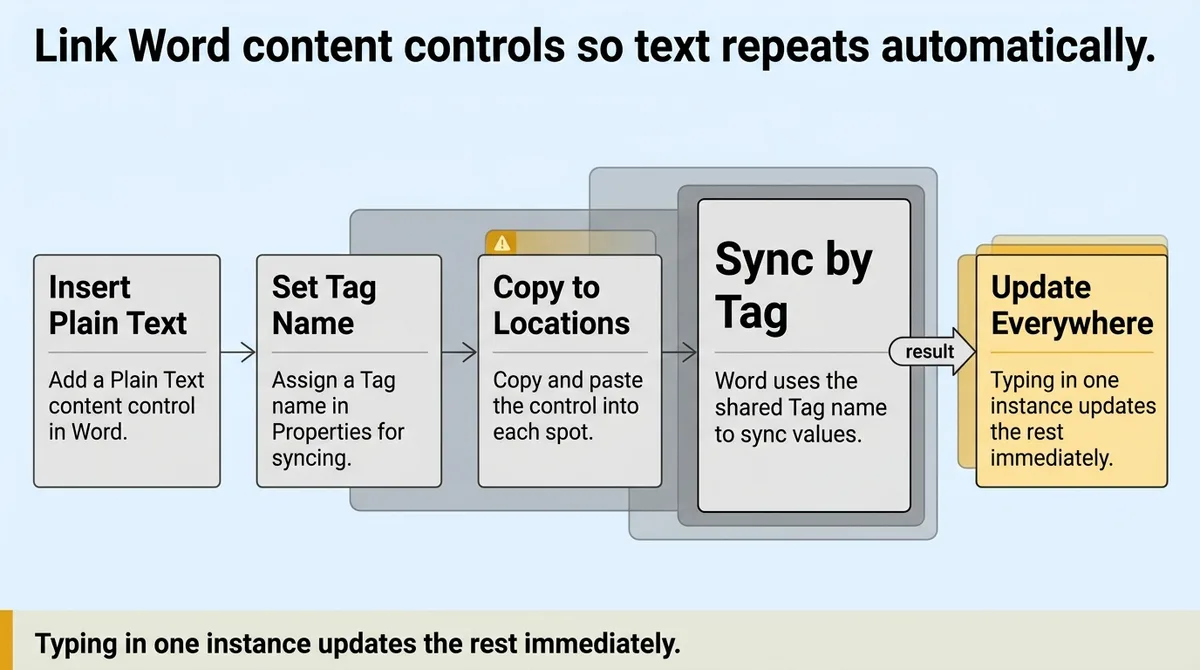
You insert a Plain Text content control, assign it a Tag name in Properties, then copy and paste that control into every location where the text should appear. Word uses the shared Tag name to sync values across all instances. When you type in any one of them, the rest update immediately.
* * *
Why Linked Controls Are Not the Same as Copy-Paste (and Why That Distinction Saves You)
Stop treating repeated text as a formatting task. Start treating it as a data structure decision.
That single shift changes how you build every template going forward.
Copying text and pasting it across a document creates independent copies. Each copy holds its own value. Changing one does nothing to the others. You end up with 14 separate strings that only resemble each other until the first edit.
Linked content controls work differently. They share a single XML data node inside the document. The document stores one value. Every control mapped to that node displays that value. There are no copies. There is one source, rendered in multiple places.
The practical difference is this: a contract template where the client name appears 14 times requires one correction in the source field. Every other instance updates immediately. No scan. No Find and Replace. No missed instance buried in a footer.
Word 2013 introduced three major content control improvements: visualization changes, XML mapping support for rich text controls, and repeating content support [\[1\]](#ref-1). XML mapping support is the mechanism that makes true synchronization possible. Without it, you are still working with duplicates regardless of how the controls look on screen.
Most guides show how to insert content controls. They stop before the XML mapping step. That omission is why so many templates still rely on manual updates.
The mental model to hold: copy-paste is duplication. XML-mapped controls are synchronization. These are not the same operation, and treating them as equivalent is what creates the correction loops in the first place.
* * *
The Linked Control Setup System: How to Configure Repeating Fields Step by Step
The Linked Control Setup System takes under five minutes for a new template. It eliminates manual find-and-replace entirely. Here is the exact sequence.
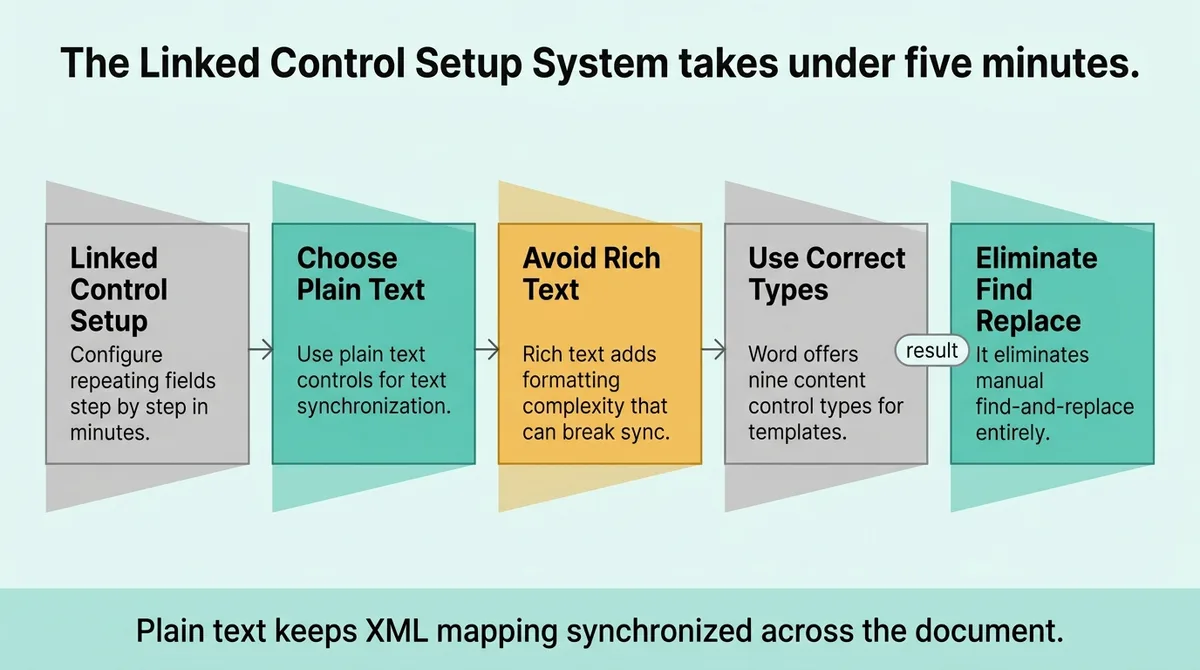
Word offers nine content control types: rich text, plain text, picture, building block gallery, combo box, drop-down list, date, checkbox, and group [\[1\]](#ref-1). For text synchronization, plain text controls are the correct choice. Rich text controls add formatting complexity that can interrupt XML mapping and break synchronization silently.
Three visualization states exist for a content control: bounding box, start/end tags, and none [\[1\]](#ref-1). During setup, use the bounding box state. It keeps every control visible on screen so you can confirm placement before distributing the document.
Linked Control Setup System: Step-by-Step Checklist
Step 1. Open Word. Go to File > Options > Customize Ribbon. Check the Developer box and click OK. The Developer tab now appears in the ribbon.
Step 2. Place your cursor at the first location where the repeating text should appear.
Step 3. On the Developer tab, click the Plain Text Content Control button. A shaded box appears at your cursor position.
Step 4. With the control selected, click Properties on the Developer tab. In the Tag field, type a unique identifier. Use something specific: `ClientName` or `ProjectCode`. Click OK.
Step 5. Select the entire control. Copy it with Ctrl+C.
Step 6. Place your cursor at each additional location where the text should repeat. Paste with Ctrl+V. Do not retype or insert a new control. Paste the original.
The Tag name is the shared identifier Word uses to sync values across all pasted instances. Every pasted copy carries the same Tag. When you type into any one of them, Word writes to the shared XML node and all connected controls update.
That is the complete Linked Control Setup System for a basic repeating field. One source. One Tag. Unlimited synchronized display locations.
A brief note on scope: this setup covers value-level synchronization. If you need entire paragraphs or table rows to repeat, that is a separate tool covered later in this guide.
* * *
What Breaks Synchronization and How to Prevent It Before It Costs You
Here is the hidden assumption most document builders carry: once a linked control is set up, it stays linked. That assumption is wrong.
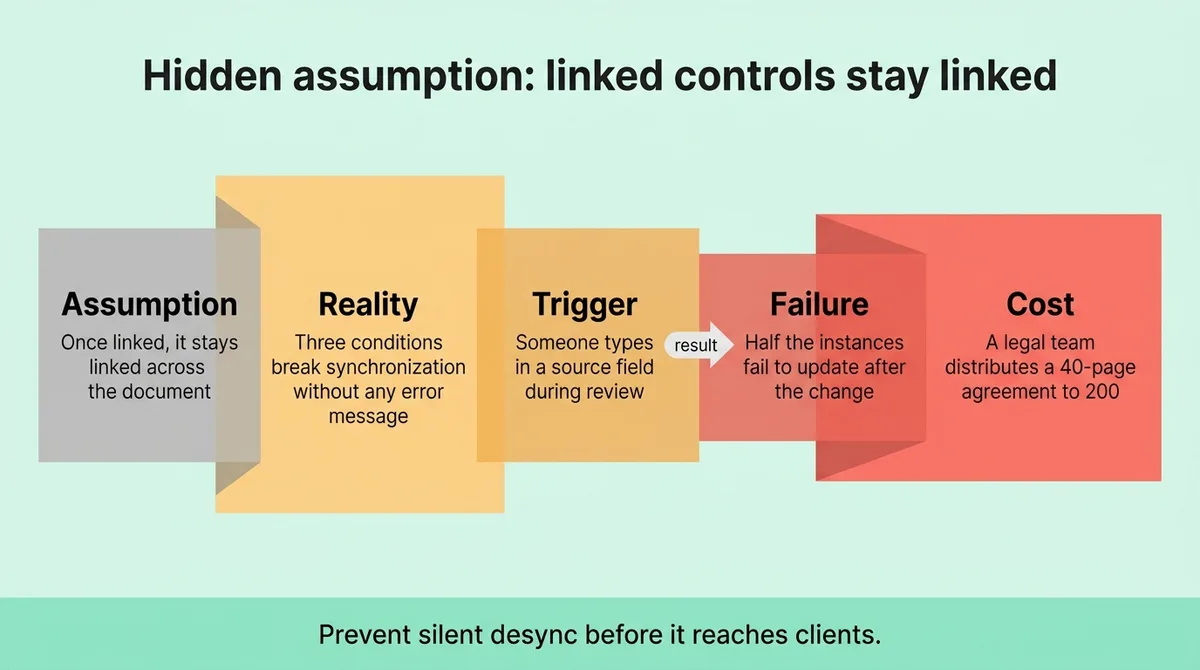
Three specific conditions break synchronization. None of them produce an error message. The document continues to look correct until someone types in a source field and watches half the instances fail to update.
Consider this scenario: a legal team distributes a 40-page agreement to 200 clients. Midway through review, they discover a name field updated in only 11 of 14 locations. One control had a mismatched Tag from an earlier copy-paste error. Six hours of manual correction followed across distributed copies that could no longer be recalled.
That outcome is preventable. The three failure conditions are specific and checkable.
Condition 1: Tag names that do not match exactly. Word's sync depends on identical Tag strings. A space, a capital letter, or a single character difference creates a separate data node. That control becomes an independent field with no connection to the source.
Condition 2: Rich text controls used where plain text is required. Rich text controls carry formatting metadata. XML mapping behavior differs between control types. Using a rich text control in a plain-text sync chain breaks the mapping without warning.
Condition 3: XML mapping pointed at a non-leaf node. XML mapping can only map successfully to leaf nodes or attributes [\[1\]](#ref-1). Mapping to a parent node fails silently. No error appears. The control simply stops syncing. This is the least intuitive failure mode and the one most likely to go unnoticed until a document reaches a client.
The visualization object model exposes two members for content controls: Appearance and Color [\[1\]](#ref-1). Use the Appearance member to confirm all controls are set to `boundingBox` before distributing any document. Controls set to `hidden` or `none` are invisible on screen and easy to skip during review.
<table class="border-collapse w-full my-4 table-auto mx-4 max-w-4xl sm:mx-auto" style="min-width: 75px;"><colgroup><col style="min-width: 25px;"><col style="min-width: 25px;"><col style="min-width: 25px;"></colgroup><tbody><tr><th class="border border-border px-4 py-3 bg-muted font-semibold text-left" colspan="1" rowspan="1"><p>Condition That Breaks Sync</p></th><th class="border border-border px-4 py-3 bg-muted font-semibold text-left" colspan="1" rowspan="1"><p>How It Fails</p></th><th class="border border-border px-4 py-3 bg-muted font-semibold text-left" colspan="1" rowspan="1"><p>How to Prevent It</p></th></tr><tr><td class="border border-border px-4 py-3" colspan="1" rowspan="1"><p>Mismatched Tag names</p></td><td class="border border-border px-4 py-3" colspan="1" rowspan="1"><p>Control becomes an independent field</p></td><td class="border border-border px-4 py-3" colspan="1" rowspan="1"><p>Check Tags view before distributing</p></td></tr><tr><td class="border border-border px-4 py-3" colspan="1" rowspan="1"><p>Rich text control in sync chain</p></td><td class="border border-border px-4 py-3" colspan="1" rowspan="1"><p>Mapping breaks without warning</p></td><td class="border border-border px-4 py-3" colspan="1" rowspan="1"><p>Use plain text controls only</p></td></tr><tr><td class="border border-border px-4 py-3" colspan="1" rowspan="1"><p>XML map points to parent node</p></td><td class="border border-border px-4 py-3" colspan="1" rowspan="1"><p>Sync fails silently, no error shown</p></td><td class="border border-border px-4 py-3" colspan="1" rowspan="1"><p>Map to leaf nodes or attributes only</p></td></tr></tbody></table>
Before sending any linked-control document, run a Tags view scan. Set all controls to bounding box display. Visually confirm every instance is present and that Tag names match exactly.
The scan takes two minutes. The manual correction it replaces can take six hours.
* * *
Maintaining Linked Controls After Your Document Is Live
A linked control document sent to collaborators faces one threat that setup alone cannot prevent: human editing behavior.
When a collaborator deletes a content control and types replacement text directly, that location is permanently unlinked. It will never update again. No warning appears. The document looks intact. The field simply no longer participates in synchronization.
This is the one rule most guides omit entirely. It is the most common source of broken templates in shared editing environments.
Two tools reduce this risk. First, restrict editing. Use Word's Protect Document feature to limit edits to content controls only. Collaborators can fill in fields. They cannot delete controls or alter the surrounding structure.
Second, understand the distinction between linked plain text controls and the repeating section control. The repeating section control duplicates content around entire paragraphs or table rows [\[1\]](#ref-1). This is a separate tool from the Linked Control Setup System. Use linked plain text controls when a single value repeats across locations. Use the repeating section control when entire content blocks must duplicate.
The schema section in Word adds two elements for content controls: appearance and color [\[1\]](#ref-1). Define both in your template before distributing. A collaborator who accidentally changes a control's appearance setting to `hidden` removes it from view. If you have not locked the design layer, that change persists silently.
Operational Maintenance Checklist for Document Owners:
- Lock the design layer using Protect Document before distribution.
- Restrict editing permissions to content controls only.
- Set all control appearances to `boundingBox` and define this in the template schema.
- Version the template file separately from every distributed copy.
- Never edit the source template directly after distribution. Changes to the template do not propagate to copies already sent.
Track Changes adds one additional complexity. When Track Changes is active, edits inside content controls may not resolve correctly until changes are accepted. Review and accept all tracked changes before running a synchronization check.
Maintenance is only necessary when the initial Linked Control Setup System was incomplete. A correctly configured template, with editing restrictions applied and appearances defined, requires no ongoing correction.
* * *
One Setup Done Right Beats a Hundred Manual Corrections
The Linked Control Setup System is not a workaround. It is how Word was built to handle repeated values across a document.
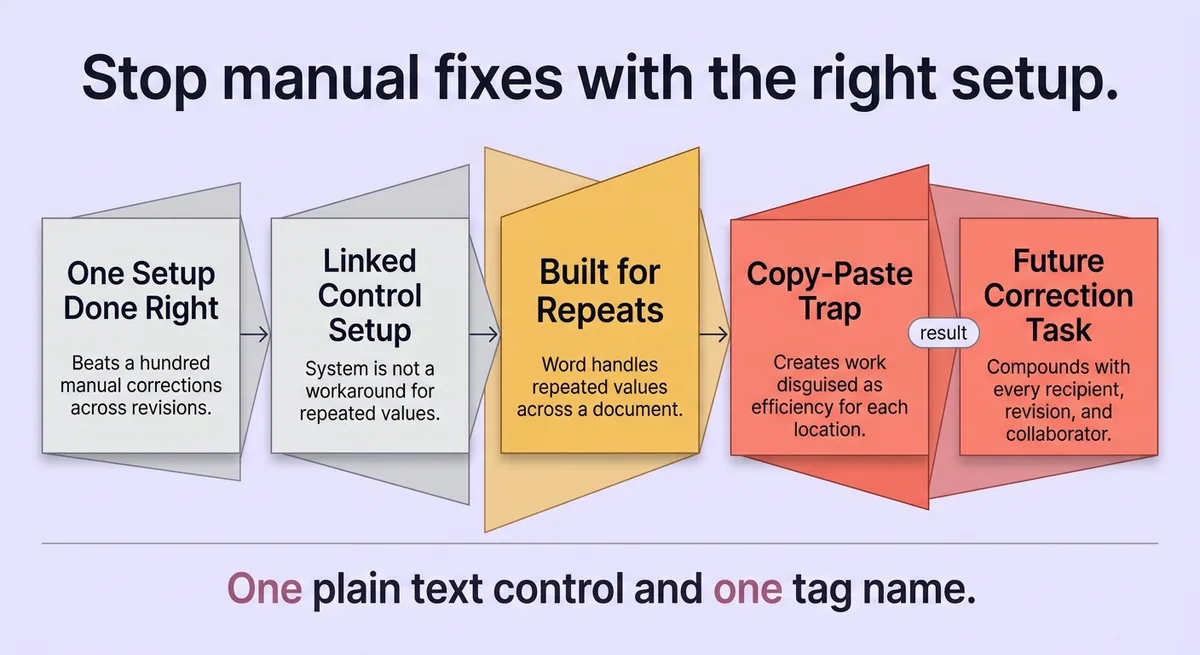
Copy-paste creates work disguised as efficiency. Every time you paste a value instead of a linked control, you create a future correction task. That task compounds with every recipient, every revision, and every collaborator who touches the file.
One plain text control. One Tag name. One paste action per location. That is the complete structure. When the source updates, the document updates everywhere at once.
Reference the Linked Control Setup System the next time you build a template that contains any repeated field: a name, a date, a project code, a contract value. Set it up once. Protect the template. Version it.
The correction loops stop immediately.
* * *
FAQ
How to repeat content control in Word?
Insert a Plain Text content control at the source location, assign it a Tag name in Properties, then copy and paste that exact control to every location where the text should repeat. Word uses the shared Tag to sync all pasted instances. Typing in any one of them updates every other connected control.
How to link content controls in Word?
Linking requires two conditions: all controls must be plain text type, and all controls must share an identical Tag name. Insert the first control, set its Tag in Properties, then copy and paste it to each target location. Do not insert new controls separately; paste the original to preserve the Tag.
How to automatically repeat text in a Word document?
Place a Plain Text content control at the first occurrence, name it with a Tag in Properties, then paste copies of that control wherever the text should appear. When you type in the source control, every pasted copy updates automatically. This requires the Developer tab to be active.
How to cross reference content control in Word?
Cross-referencing content control values uses the same Tag-based linking system. Insert your source control, assign a Tag, and paste copies at every reference location. All copies share the same XML data node, so any update to the source propagates to every cross-reference point in the document.
How to link content control in Word?
Insert a Plain Text content control, open Properties, and set a unique Tag name. Copy that control, then paste it at each location where the value should appear. The Tag name is the link. Every control carrying the same Tag reads from and writes to the same XML node in the document's data store.
How to auto populate repeating text in Word?
Auto-population of repeating text uses linked Plain Text content controls. Insert one control, tag it, and paste it to all target locations. When a user fills in the source field, Word writes the value to the shared XML node and displays it in every linked instance without any additional action required.
How do I link contents in Word?
For repeating field values, use linked Plain Text content controls with matching Tag names. For repeating content blocks such as full paragraphs or table rows, use the repeating section control instead. Both tools live on the Developer tab. Choose plain text controls for value synchronization and repeating section controls for structural block duplication.
* * *
References and Citations
[\[1\]](#ref-1) [https://learn.microsoft.com/en-us/office/client-developer/word/content-controls-in-word](https://learn.microsoft.com/en-us/office/client-developer/word/content-controls-in-word)